Table View
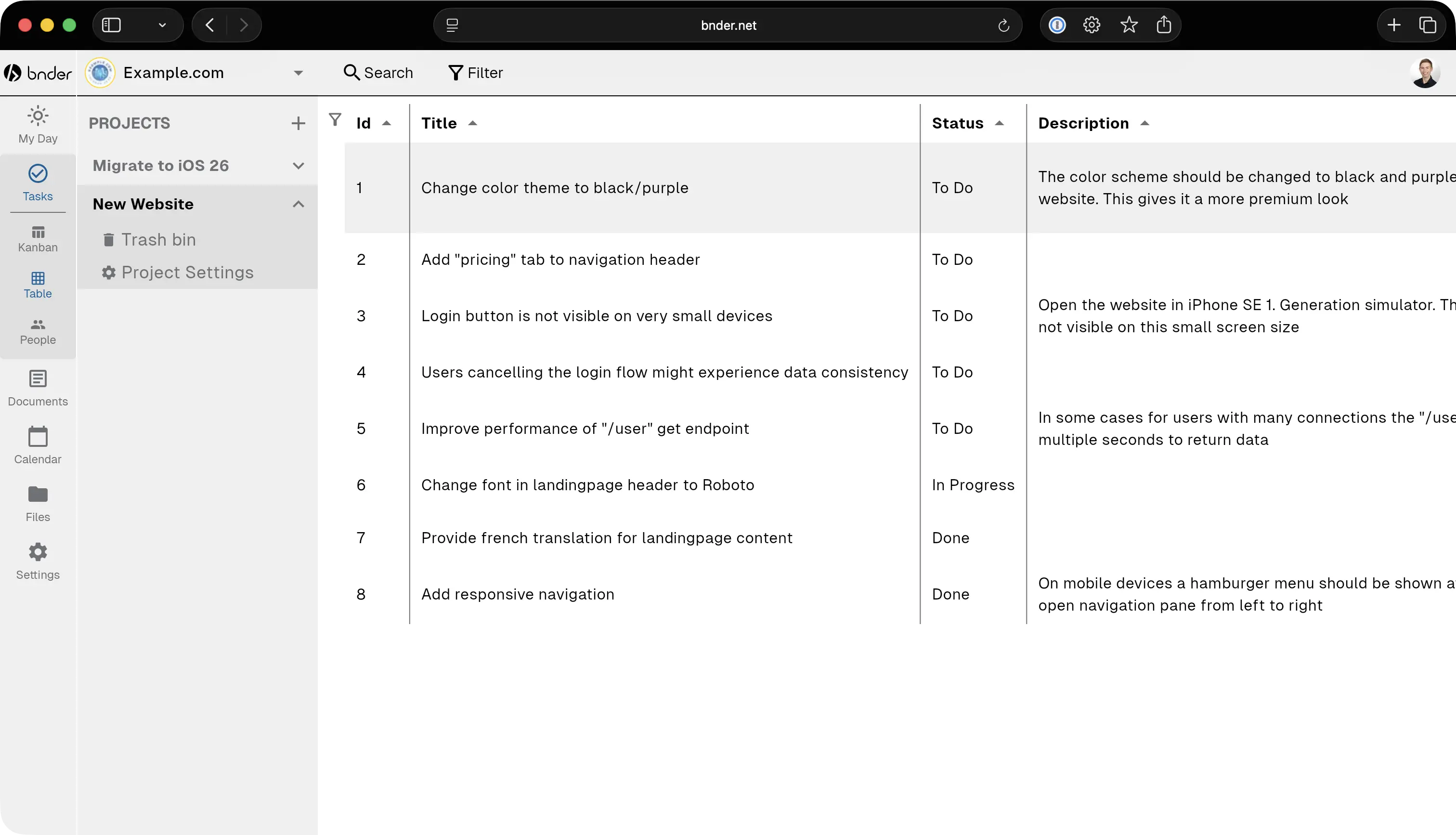
The table view provides a structured way to see all tasks in your workspace.
If the configured columns do not fit in the window, use the horizontal scrollbar at the bottom of the table. Use Choose visible columns above the table to show only the fields you need. It allows you to sort, filter, and manage tasks efficiently.
Editing multiple tasks
Use the checkbox at the start of each row to select tasks. The checkbox in the table header selects every task currently shown by your filters.
Choose Update selected; a loading indicator appears while Bnder prepares the editor. Select one field and enter the value to apply. You can update status, priority, assignees, teams, labels, milestone, deadline, effort, and non-file custom fields. Search long user, team, label, and option lists. For fields with multiple values, choose whether to add, remove, or replace all values; adding is the default and keeps existing values. Optional single-value fields include a separate Clear value choice.
Before applying, review the changed, unchanged, and blocked task counts. Bnder skips tasks that already have the chosen value and warns about assignee limits, required fields, invalid input, and unfinished dependencies. Progress is shown while tasks update.
Available fields depend on your project permissions. If some updates fail, the result groups them by reason and keeps those tasks selected so you can correct the value or retry. Choose Apply and edit another field to keep editing the selected tasks; tasks hidden by the first change are safely removed from the selection.
Filtering and Sorting
You find a filter icon in the top left at the beginning of the table header row. Click on it to open the filtering options. You can filter tasks based on every column available in the table view.
Project-specific task custom fields can also be enabled as extra columns from the same column picker. These columns are hidden by default so you can keep the table compact until you actually need them.
To sort tasks, click on the column headers. Clicking once will sort the tasks in ascending order, clicking again will sort them in descending order and a third click will remove the sorting.
Custom-field filters support:
==and!=for all field typescontainsfor text and multi-select fields>and<for number and date fields