Panduan ini berbahasa Inggris. Aplikasi menggunakan bahasa pilihan Anda.
Code Integrations
Bnder can connect task history with GitHub and GitLab push webhooks. In Discord workspaces, use the integration commands to generate the webhook URL for each repository. If you have any suggestions for integrations, please let us know in the support server.
GitHub
Bnder task workflows can be integrated with GitHub. This integration allows you to mention tasks in commits, which will produce a new entry in the task history with a link to the commit.
Tasks can be closed by mentioning them in a commit message with the keyword closes or closed following a "#" and the
task number.
Setup
Get the API URL
In the Bnder app, open workspace settings → Integrations → GitHub and generate a webhook URL. Copy the URL,
then use Copy secret in the setup card for GitHub’s Secret field. You can also use the /integration github
command in Discord to get a URL.
If this integration predates signed webhooks, run the command again and replace the old URL. Legacy keys are revoked because workspace members could previously read them.
Set the Webhook
Go to the repository settings and add a new webhook with the URL you got from the previous step.
Set Content type to application/json. In Secret, enter the final segment of the webhook URL—the generated key
after /github/. Bnder rejects unsigned requests and signatures made with any other secret.
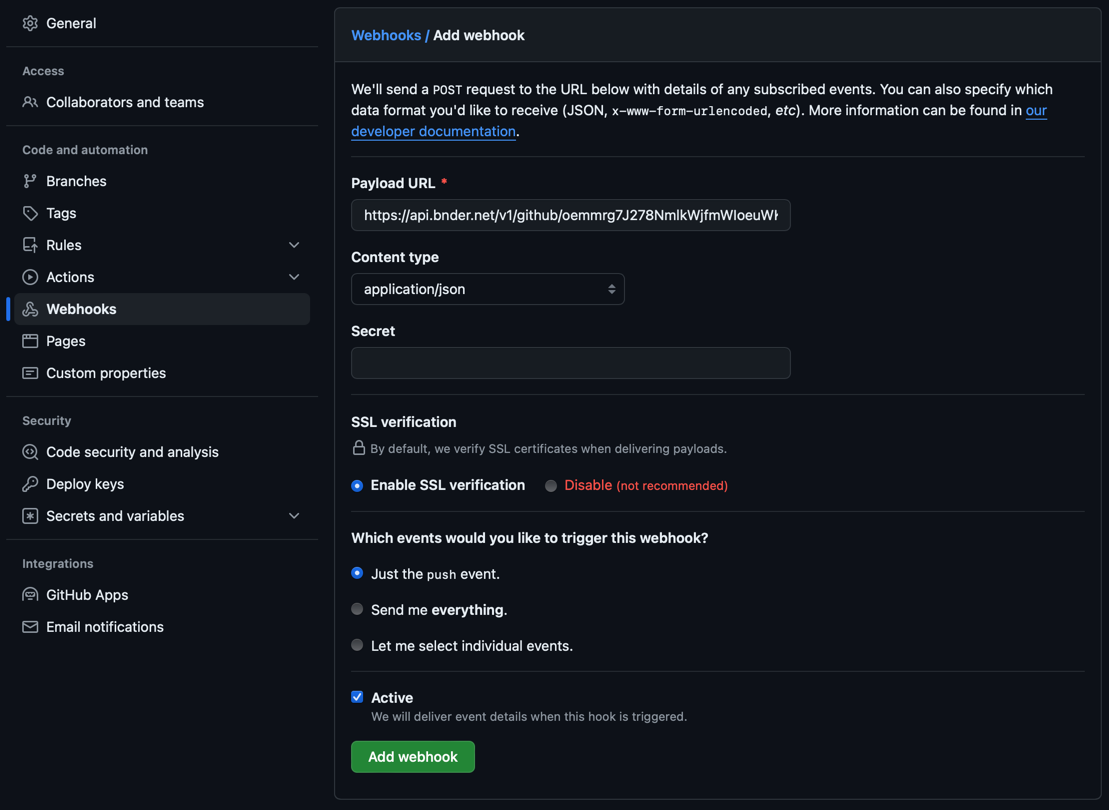
Select the "push" event. This will trigger the webhook when a commit is pushed to the repository.
Save the webhook
Save the webhook and check that a new delivery succeeds. If GitHub reports 401 Invalid GitHub webhook signature,
copy the secret again from Bnder and update GitHub’s Secret field. After regenerating a key, update both
Payload URL and Secret in GitHub.
Keywords to close tasks
You can close tasks by mentioning them in a commit message with the following keywords followed by a "#" and the task number:
- closes
- closing
- close
- closed
- fix
- fixes
- fixed
- resolve
- resolves
- resolved
Example commit messages
Added a new feature. Closes #12
Would move task 12 to the "Done" state.
Fixed a bug. Resolved #3, #41
Would move tasks 3 and 41 to the "Done" state.
Closed a task. Fixes #5. Fixed an issue which resolves #13,#14, #15
Would move task 5 to the "Done" state and tasks 13, 14, and 15 to the "Done" state.
GitLab
Bnder task workflows can be integrated with GitLab. This integration allows you to mention tasks in commits, which will produce a new entry in the task history with a link to the commit.
Tasks can be closed by mentioning them in a commit message with the keyword closes or closed following a "#" and the
task number.
Setup
Get the API URL
In the Bnder app, open workspace settings → Integrations → GitLab and generate a webhook URL. Copy the URL,
then use Copy secret token in the setup card for GitLab’s Secret token field. You can also use the
/integration gitlab command in Discord to get a URL.
If this integration predates authenticated webhooks, run the command again and replace the old URL. Legacy keys are revoked because workspace members could previously read them.
Set the Webhook
Go to the repository settings and webhooks.
In Secret token, enter the final segment of the webhook URL—the generated key after /gitlab/. Bnder rejects
requests that do not carry this token.
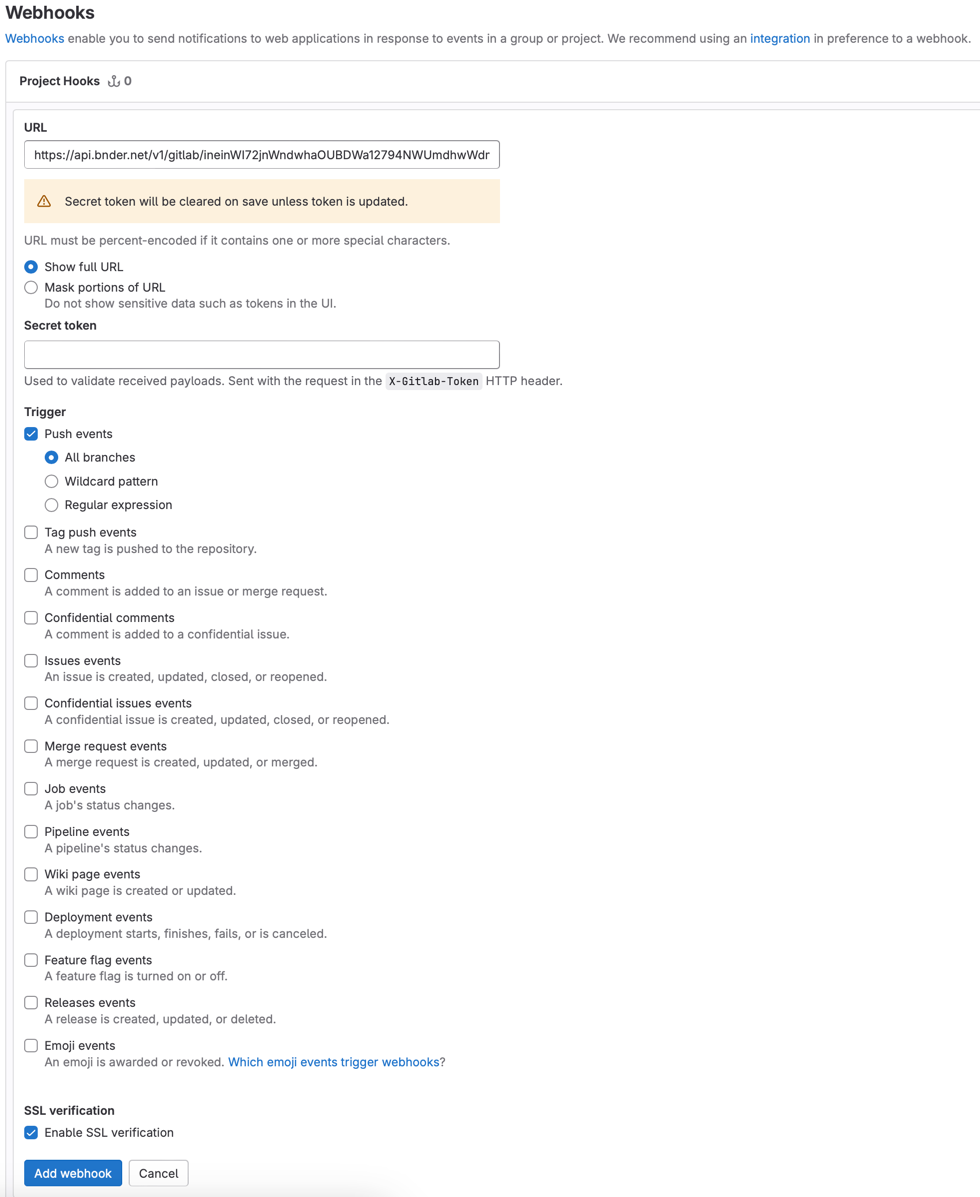
Select the "Push events" event. This will trigger the webhook when a commit is pushed to the repository.
Save the webhook
Save the webhook and test a push event to check that delivery succeeds. If GitLab reports
401 Invalid GitLab webhook token, copy the token again from Bnder and update GitLab’s Secret token field.
After regenerating a key, update both URL and Secret token in GitLab.
Keywords to close tasks
You can use the same keywords as in the GitHub integration.